Full Scenario
This tutorial details all the steps involved in putting an album online, from creating a label to creating a delivery.
Last updated About 1 year ago
1. Create your Contracts and Labels
Each Release has to be associated with a Label and each Label has to be associated with a Contract.
A contract in Labelcamp is an organizational object that has its own distribution rules and rights. Contracts inherit distribution rules from their parent distributor, and in turn, labels inherit from contracts, and releases inherit from labels. This hierarchy helps manage distribution and rights efficiently.
The organization is up to you, it can be:
one contract = one label
one contract = multiple labels
organization with one contract
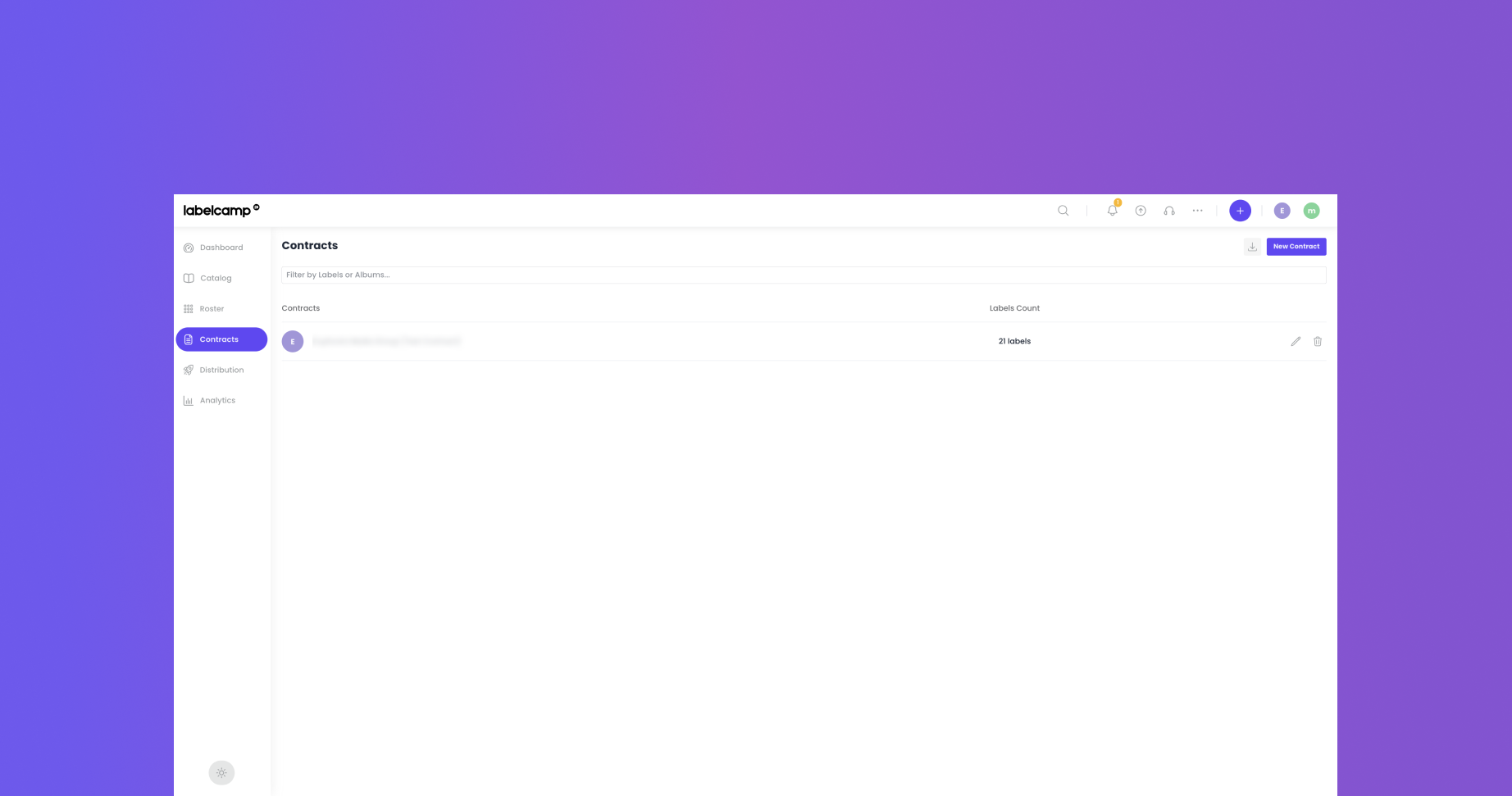
organization with multiples contracts

2. Create your Albums
Go through all four steps using the simplified form. You can amend any step at any time while the release is in draft mode.
Note that ‘Territory and Platform Rights’ can be modified in the Distribution tab.
Once your album is completed, either validate or submit the release.
3. Associate Artist IDs to your artists
Link an artist with its Platform's Artist ID (Apple ID, Spotify Artist URI, or other platforms supporting Artist IDs).
This prevents incorrect mapping when there are homonymous artists.
4. Validate the Default Offer
Validate the Default Offer is mandatory to send your album to DSPs.
There’s no need to create a custom offer unless you’d like to test DSP’s specific options such as release time, exclusivity period, etc.
5. Create and Validate a delivery
Once your album completed and your default offer validated, you’re ready to create a delivery.
Note that an initial delivery will be automatically created for any new product based on the default rights, you’ll just need to validate it.
To sum-up, an album can be sent if:
The product is active
The default offer is active
The delivery is validated
The product has DSP’s rights
The feed is active
Was this helpful?
Still need help? Ask the team