Artist IDs
Last updated About 1 month ago
If you want to link an artist with its Platform's Artist ID (Apple ID, Spotify Artist URI, or other platforms supporting Artist IDs), you can do that from the related artist's page in Labelcamp. You can either access this page by searching for the artist using the global Labelcamp search or directly from the artist index on any Album page, as described below.
Access to an album's Artists List
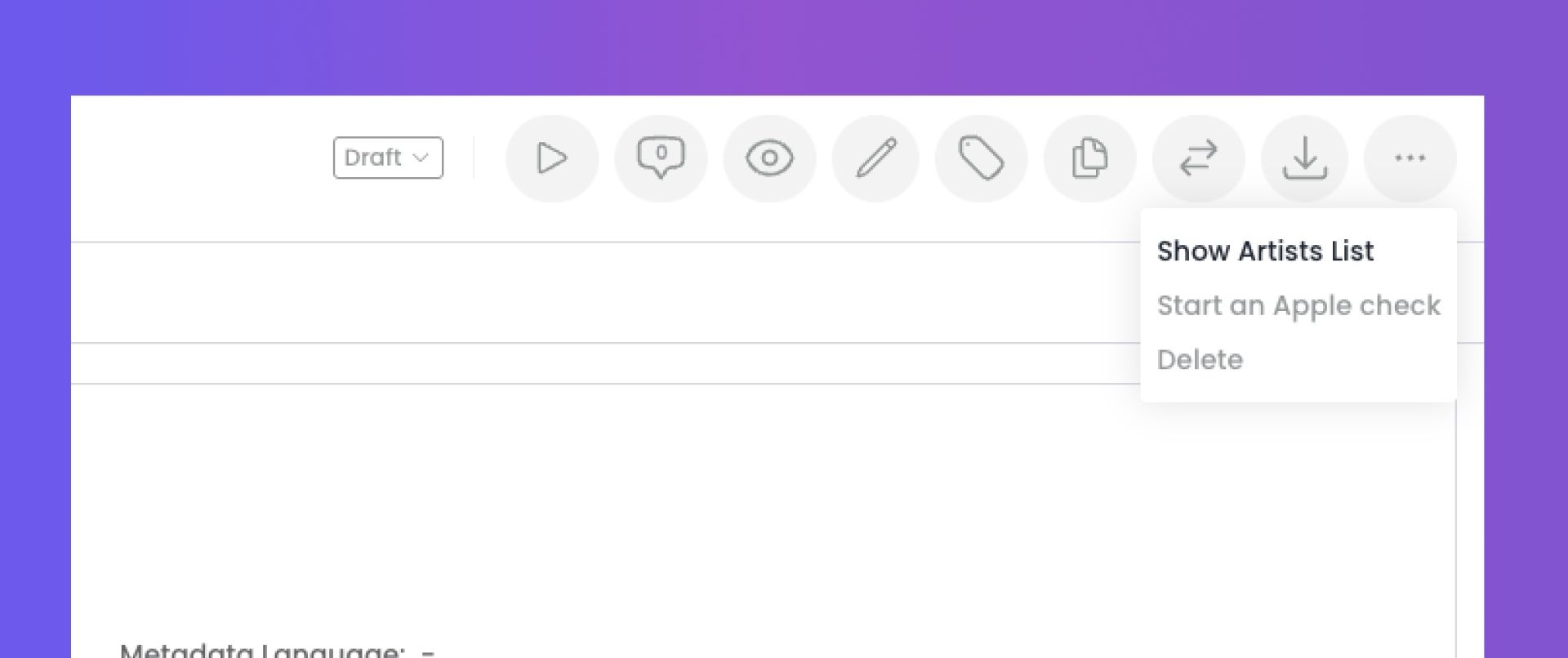
Click on the top right-hand corner icon and click on the 'Show Artists List' link
Select an artist from the list
How to add a new Artist ID
On the Artist page, click on Artist IDs in the menu
Click on the "New Artist ID" button
Select the Platform for which you want to link an Artist ID to this artist
Add the Artist ID
Note that for Apple, Labelcamp automatically fetches existing Artist ID(s) from the iTunes Transporter tool. You will be able to select the right artist ID from the returned list if it already exists. You can also create a new Artist ID on Apple directly from Labelcamp if the artist does not have any albums available on Apple yet. It is also possible to retrieve and associate the Spotify Artist URIs to your artists in the same way. For creating new artist pages on Spotify, you need to fill in "NEW" as the artist ID. Note that artist ID management via feed is reserved to Spotify Preferred Partners.
Once an Artist ID is linked to an artist in Labelcamp, the deliveries to the concerned platform of any albums from this artist will include the related Artist ID within the album's metadata. It helps to ensure that the platform will associate the album with the right artist's discography.
Special cases
Amazon
Artist IDs on Amazon are the ASINs.
For instance: https://www.amazon.fr/music/player/artists/B0021KE3LO/daft-punk
Apple
The ID to enter is the last number on an Apple's artist page.
For example: https://music.apple.com/us/artist/daft-punk/5468295
You can also request a new ID directly within the app when you add an ID for Apple here by clicking on 'request a new Apple artist page' on an artist ID page in Labelcamp.
Beatport
The artist ID you need to use for Beatport is the artist name on the Beatport artist page.
For instance: Supermassive
The usage is only needed to map a release when the artist name is specific on Beatport. Indeed, homonyms are not supported on Beatport, and to differentiate homonymous artists, Beatport recommends adding a country abbreviation (the country from which the homonymous artist comes from).
For example: Supermassive (FR)
Deezer
The ID to enter is the last number on a Deezer's artist page.
For example: https://www.deezer.com/fr/artist/27
ISNI
ISNI, or the International Standard Name Identifier, is a globally recognized standard for uniquely identifying individuals involved in creative works (writers, performers, etc). Existing ISNIs can be found here: https://isni.org/page/search-database/
Example: https://isni.org/isni/0000000474129763
Meta (Facebook Library)
You need to request a Meta ID CSV via this form using the option Artist Linking > Artist IDs request: https://www.facebook.com/help/contact/422658628311218
You will then receive a CSV file with the Meta ID for all your artists.
You can then use the artist’s Meta ID as “Facebook Library” (or “Facebook" if you have a hybrid feed) Artist ID and the tracks will be mapped to the correct Instagram page when it is associated to the Meta ID in the file.
Meta ID / Facebook Library Artist ID example: 1037914786787772
Soundcloud
Just fill out the Artist ID field with Artist IDs from Soundcloud URLs.
For example: https://soundcloud.com/artist-name
Spotify
First, you need to get the artist's URI on the Spotify artist profile.
For instance: spotify:artist:4tZwfgrHOc3mvqYlEYSvVi
After that, simply include this ID on the 'Artist ID' page of your artist on Labelcamp.
YouTube
YouTube Artist Channel URLs finish with an extension consisting of a 24-character ID that makes up the channel ID.
For instance: youtube.com/channel/UC_kRDKYrUlrbtrSiyu5Tflg
Then simply enter this ID on the 'Artist ID' page (and select the Platform “Youtube Art Tracks”) for your artist on Labelcamp.
Was this helpful?
Still need help? Ask the team