Managing Deliveries
Last updated Over 1 year ago
In Labelcamp, one ‘Delivery’ represents one delivery operation, i.e. the sending of one full or partial release (e.g. an album) to one platform (e.g. Spotify).
Creating New Deliveries
Users are able to generate any type of Delivery at a release level (Distribution > Deliveries > New Deliveries) or to use the Bulk Mode (see article Managing Bulk Deliveries for more information).
Types of Deliveries
There are 4 different types of Deliveries, depending on the user’s intended action: Delivery, Update, Redelivery, Delete.
Compliance checks
There are several smart compliance checks that may prevent an unintended delivery to occur
e.g. delivering a release to a platform while rights for the latter are missing;
attempting to update a release on a platform where this same release had never been delivered to,
etc...
Refer to the Export Features to understand the capacities of each delivery point.
Status of Deliveries
Labelcamp offers complete monitoring of the delivery process through the status of each Deliveries.
By seeing each Deliveries, users can access detailed delivery information such as delivery path on the platform’s FTP folder, internal batch ID, error message if any (FTP down, rights not compliant), etc...

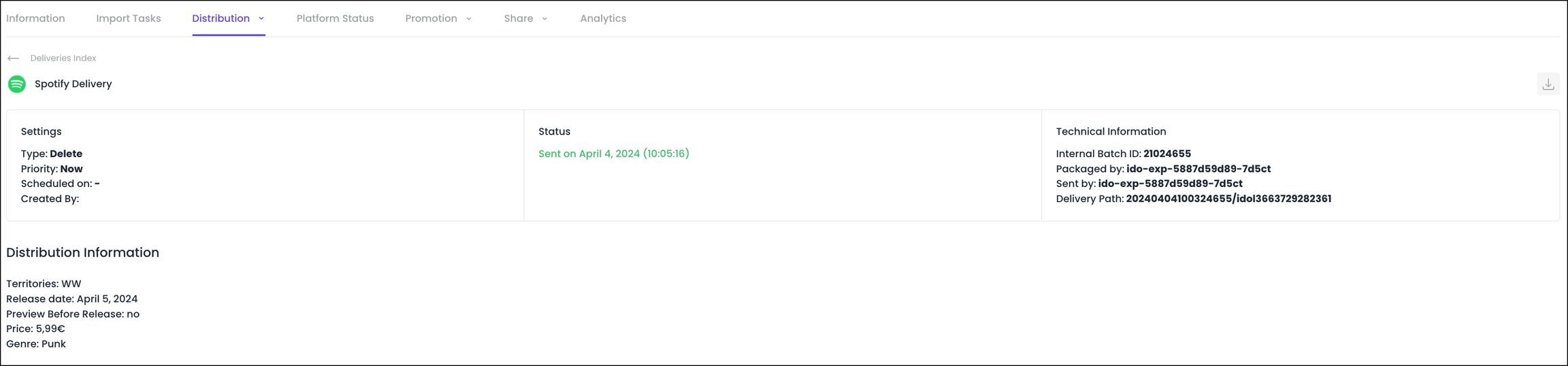
Note that the application automatically resets (i.e. create a new Delivery) each Delivery with an ‘error’ status every 24hrs. However, after too many failed attempts the status will change to ‘stuck’ along with an email alert sent to the user, inviting him to look into the issue.
Options
A ‘sending date’ can be defined for each Delivery ('Scheduling' field). The delivery will be held until the specified date. If no sending date is filled in, the execution of the Delivery is automated.
Advanced Option
Additionally, it is possible to define a general restriction for a platform regarding the delivery date, in the form of a scheduling rule. This option is accessible under the platform section and for each DSP. The field name is ‘Prevent delivery N days before release or preorder date’.
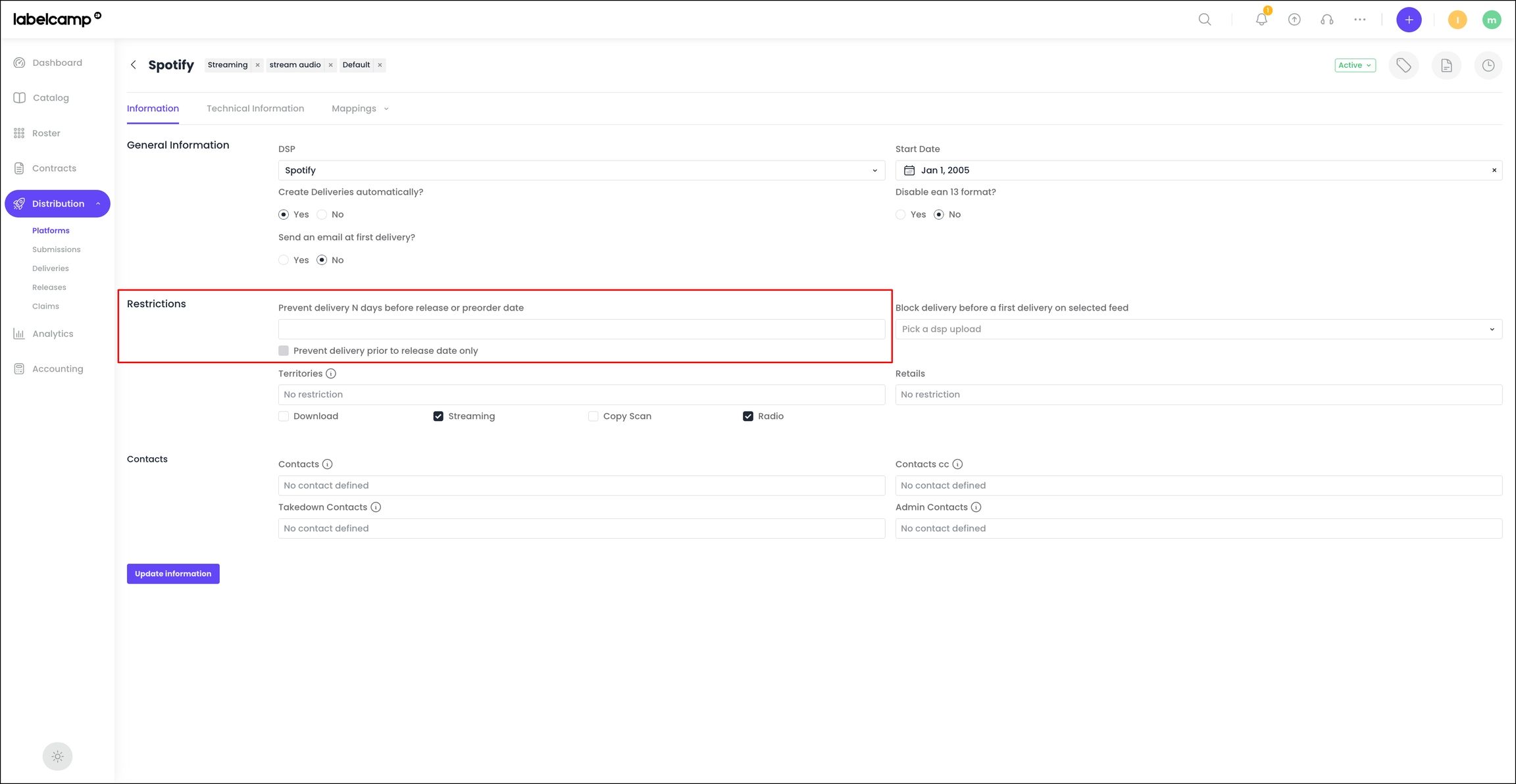
Setting N days in this field will retain the execution of the Delivery until the defined number of days before the digital release date (or pre-order date) is reached.
Was this helpful?
Still need help? Ask the team