Creating Deliveries
Last updated About 1 year ago
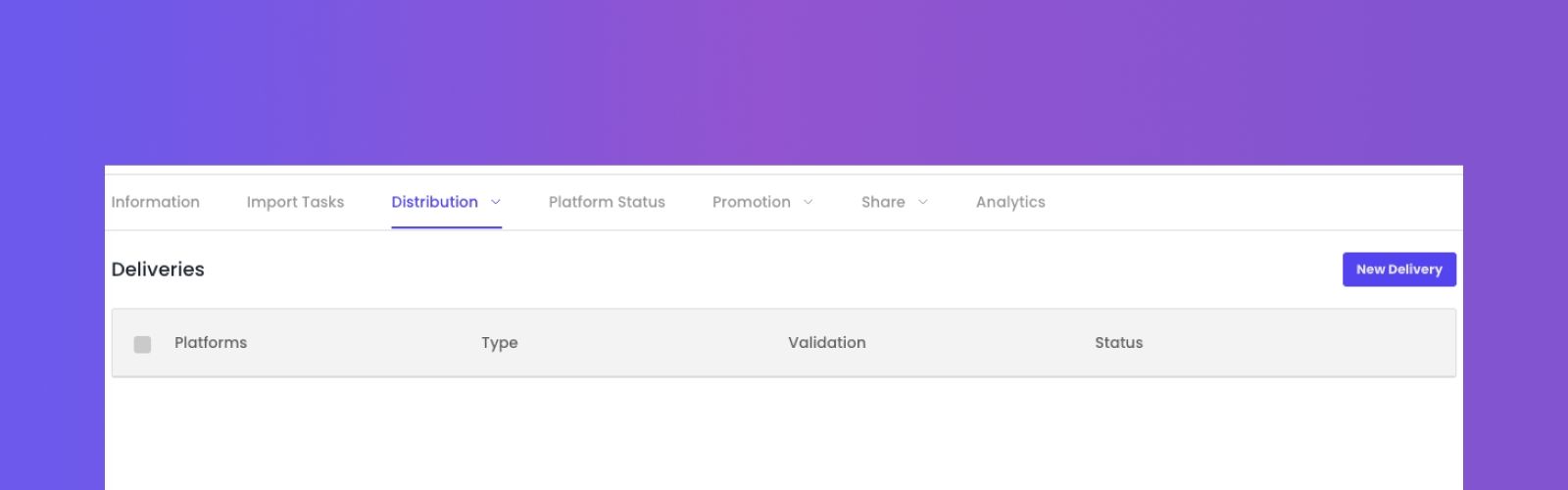
To generate new Deliveries for an album:
go to the Distribution tab,
select Deliveries in the menu,
and click on New Delivery.
An 'Update' delivery to one DSP
In this example, the user aims to deliver an update to one DSP:
Set the delivery type as ‘Update’ (or 'Redelivery' or 'Delete') type.
Make sure to validate the delivery using the dedicated toggle button.
Select the relevant platform(s).
Click on the "Create" button.
Once done, the delivery will be automatically scheduled.
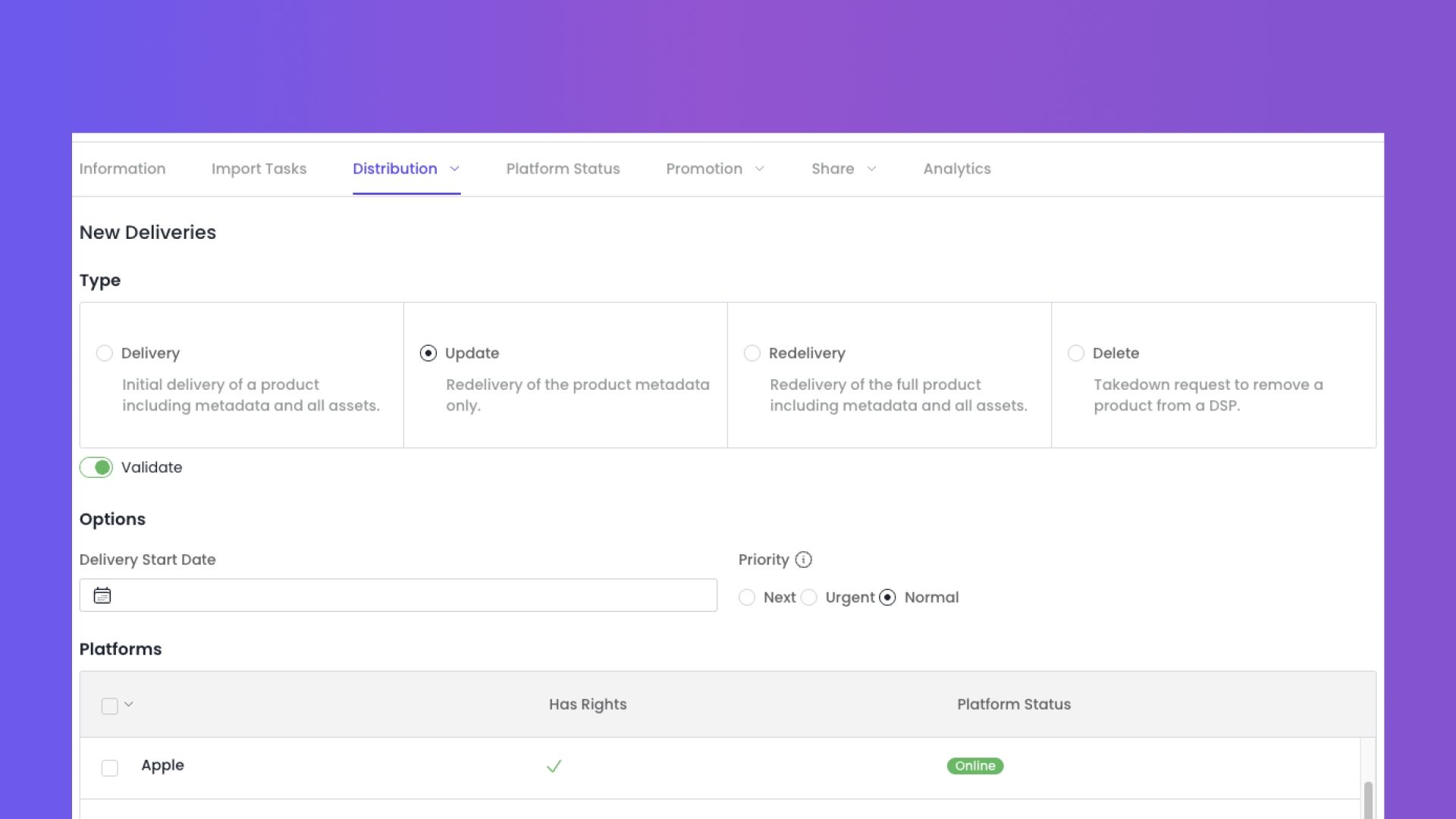
To be sent, the selected platforms must be defined in the Distribution Rights.
Delivery Priority Levels
Our smart prioritization system is designed to automatically and efficiently manage deliveries based on urgency – even when handling high volumes of content. In most cases, there's no need to manually adjust the priority: the system optimizes the order of processing for you.
That said, it remains possible to manually assign a priority level if needed. Below is an overview of the available options:
🟢 Normal
Default for most deliveries.
Recommended for standard, non-urgent content. We suggest keeping this setting unless a delivery requires faster processing.🟠 Urgent
Processed ahead of Normal deliveries.
Useful when a delivery needs to be prioritized, but does not qualify as critical.🔴 Next
Highest priority.
This option places the delivery at the very top of the queue. It is intended for exceptional, time-sensitive cases where immediate processing is required.Please note:
A daily usage quota applies (contact us for details).
This setting should be used sparingly to maintain overall system efficiency.
Importante Note
Selecting ‘Next’ bypasses all validations (product, offer, DSP) and delivers the product immediately.
Proceed with caution – this action is performed under your responsibility.
Was this helpful?
Still need help? Ask the team