Managing Bulk Deliveries
Last updated Over 1 year ago
In addition to the regular single-release delivery, Labelcamp has a bulk delivery mode to schedule multiple deliveries at once.
To access the related form, go to 'Distribution -> Deliveries' in the left menu then click on "New Bulk Deliveries" to access the simplified form. 🔗 https://app.labelcamp.io/distribution/deliveries/send-task-factory/new 🔗
Users can handle all existing types of Delivery in bulk mode.
The menu has several fields to fill out and offers different options:
Settings
Name: define a Name for your Bulk Delivery (e.g. "Full catalog delivery to Tidal")
Type: select the desired type of Delivery
Platforms: pick up the desired platforms* (e.g. Amazon, Apple, Spotify, etc.)
Content
Select products: paste your album barcodes into the free field if you want to define a list of products manually
Add all products: select this option to send an entire catalog and search for the label, contract, or distributor catalog you wish to send
Rights
Yes: let this option as it is if your platform rights are set correctly for products
No, I want to create "Add" rights rule(s) on products: it should only be used if the rights of the platform(s) in question are expected to be missing for all the products included. It will create an "Add" rights rule for each product for the selected platforms and should therefore be used with caution.
Once all the fields have been completed, simply click either the 'Schedule' button to schedule the delivery for a specific date, or the 'Create' button to deliver as soon as possible.
Requested deliveries will be generated and automatically validated at the same time. You must therefore be careful when creating them, as they will be automatically enqueued for delivery to the platforms (depending on your scheduling options).
Users will then receive an email with a direct link to their Bulk Delivery in Labelcamp. From this section, you can monitor the progress of your Bulk Delivery:
🔗 https://app.labelcamp.io/distribution/deliveries/send-task-factories 🔗
You can also add a free text note to your Bulk Delivery by clicking on the page icon at the top right of the form.
Below are a couple of use cases of bulk deliveries.
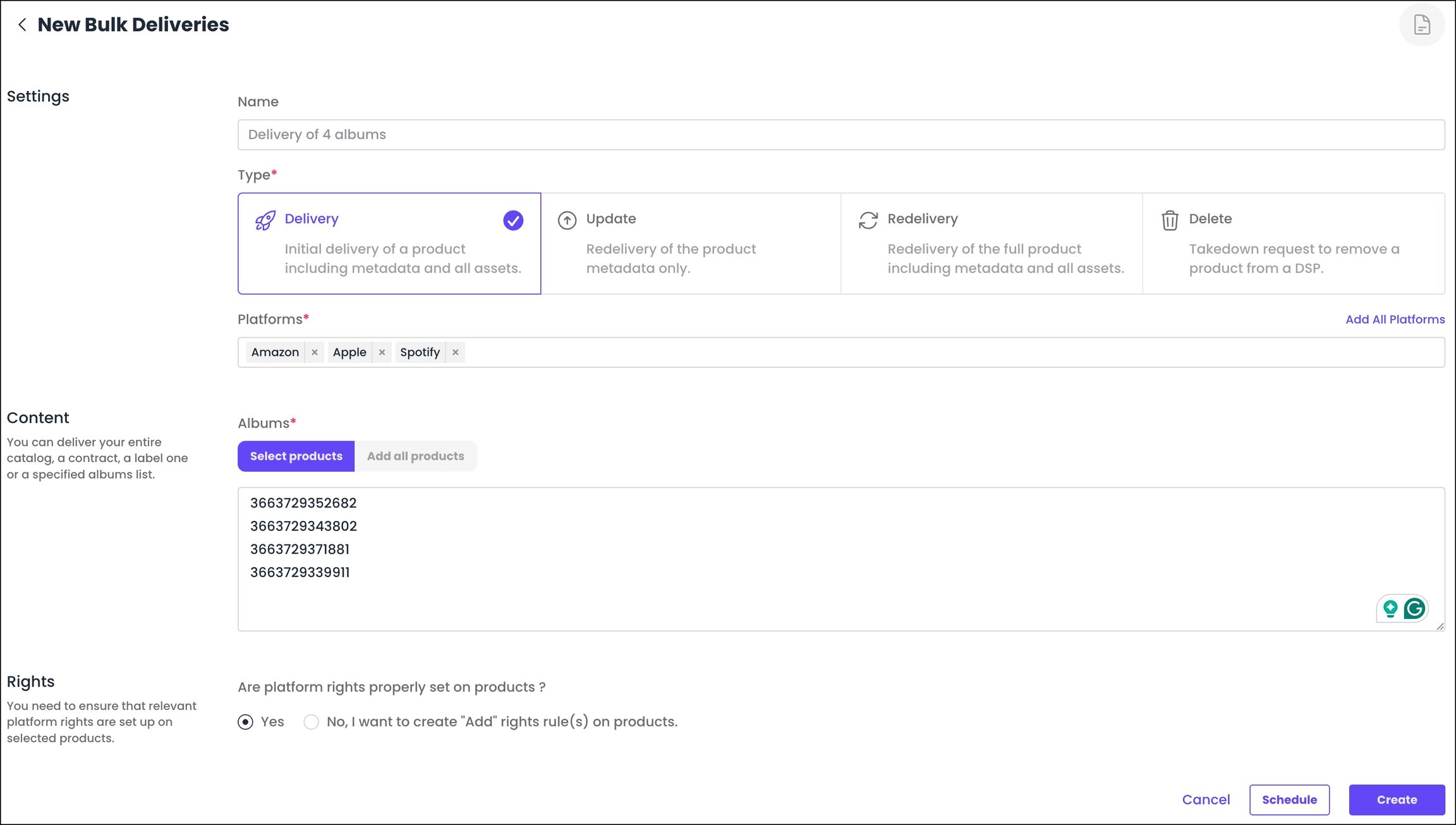
Deliver multiple barcodes to one or several DSP(s)
In this example, the user aims to deliver 4 products to Amazon, Apple, and Spotify. The deliveries are set as 'Delivery' type.
Once created, deliveries are automatically scheduled.
Take down an entire catalogue (Distributor, Contract, Label)
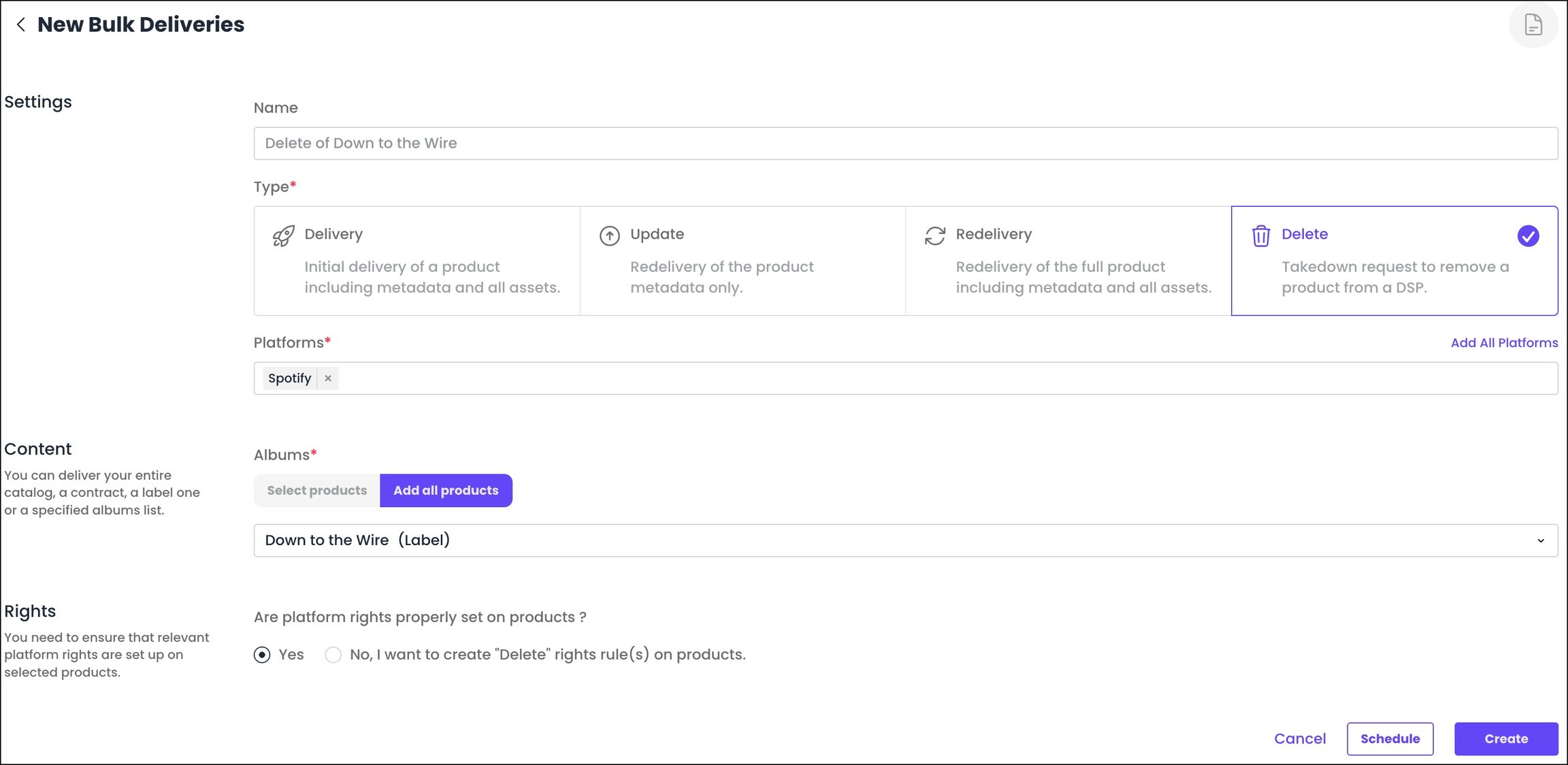
In this example, the user wants to take down the entire catalog of a label called 'Down to the Wire' from Spotify.
Deliveries are set as 'Delete' type.
'Content' > 'Add all products' has been selected here, and the user has picked the appropriate label from the search results.
Once created, takedown deliveries are automatically scheduled.
As an exception to the general rule, 'Delete' deliveries can be sent for 'Archived' products.
Was this helpful?
Still need help? Ask the team